 Science Explorer
All Entries in the Category "Working with Search Results"
Sort Results
Results lists can be sorted in both descending and ascending order. Choose the desired sort order on the search results page using the dropdown menu at the top of the page, below the search box. The default sort order is usually Relevance from most to least. For ADS compatibility mode, the default sort order is Date from most recent to oldest. You can set your personal default order in your free SciX account.
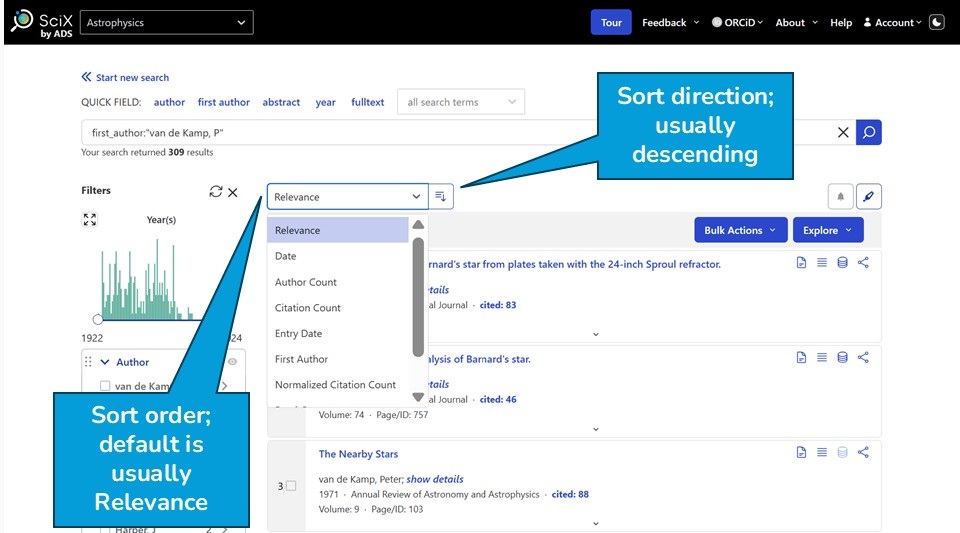
Author Count
This option sorts based on a record’s number of authors.
Citation Count
This option sorts based on a paper’s number of citations.
Credit Count
This option sorts based on a record’s number of credits.
Date
This option sorts based on a paper’s publication date (month and year).
Normalized Citation Count
This option sorts based on a paper’s normalized citation count, which is its total number of citations divided by its number of authors.
Entry Date
This option sorts based on a paper’s entry date in the SciX database.
First Author
This option sorts based on the last name of a paper’s first author.
Read Count
This option is a measure of recent popularity. It sorts on the 90-day read count of a paper: the number of times a paper has been accessed in SciX or on arXiv in the last 90 days.
Relevance
This option is usually the default sort in SciX, although ADS compatibility mode uses Date as its default sort order. Relevance sorts records based on a combination of four factors.
- The Lucene score from the search enginetakes into account how well a given result matches the search terms. Matches to certain fields are valued more highly than others; a match to an author name, for example, is weighted more highly than a match to a keyword. For unfielded searches, or those that do not use search tags, commonly searched fields, such as author and publication year, are more heavily weighted in determining the score (for example, see the weights within the “qf” parameter here).
- A popularity boost is applied to articles that are more highly cited or read. An age-normalized cite boost and recency boost are in development that will jointly replace this factor. (For more, see the cite_read_boost.)
- A document-type boost is applied so that articles are returned more highly than other documents, such as conference proceedings or books. (For details, see the DOCTYPE_BOOST_FACTORS.)
- A disciplinary boost is applied (defined as the COLLECTION_RANKINGS), so that results from collections more applicable to the selected discipline (in the top-left menu) are returned more highly. For example, if “Astrophysics” is selected, results from the astrophysics subcollection are weighted most, while articles from physics, general, planetary science, heliophysics, and earth science, in that order, are weighted with gradually decreasing boosts. (Astrophysics, planetary science, and heliophysics are developmental subcollections of the astronomy collection.)
Feedback regarding both well-ranked and poorly ranked results would be welcome.
Quick Links
Following each article in a search result there are symbols which indicate the availability of what information is available for the article. These can be used as direct links to the information or as quick indicators of what you can find in the article.
Information is grouped into four categories:
Available full text sources
Here you will find links to Publisher Article, Publisher PDF, arXiv e-print, SciX scanned article or SciX PDF. Links that are green mean that this article is “Open Access”, meaning that there is no subscription necessary to access the full text through this link. SciX gives all available links to provide the user with the choice that best suits him/her. Please note that a lot of these links go to resources outside of the SciX and the user may be prompted for a username or password. The external links can be configured to work with your library subscriptions.
References and Citations
Here you will find links to the references in the article and citations to the article. The number of references and citations is indicated by the number in the parentheses. Please note that as with all abstracting and indexing services, the reference and citation lists in the SciX are not complete. There are several sources of incompleteness of citation lists:
- SciX doesn’t have the cited article in the database. This happens for instance for most papers appearing in mathematics and chemistry journals.
- Our reference resolver program couldn’t interpret the reference. This may be due to errors or incompleteness in the reference, unusual formatting of it, or simply limitations in our program’s abilities.
- We do not have the reference list for the citing paper. This happens for older articles and for articles in journals and conference proceedings that do not supply us with reference lists.
- We are constantly adding to our references by extracting reference lists from scanned articles, trying to improve reference recognition capabilities, and adding new records to our databases, so this work is an ongoing effort which will cause reference and citation lists to change over time.
Data Links
Here you will find links to Data in the article. We provide links to astronomical archival data (from data centers including MAST, NExSci, Chandra, PDS), earth science data (from NOAA, USGS, and other agencies), and to SIMBAD and to NED.
Share Options
Here you will find options to share the article. Available options are “copy URL” and “copy citation” (meant to be friendly to copy-paste into a text editor/word processing doc). The default copy citation format is AGU and it can be modified in the export settings. See Copy Citation for details.
Copy Citation
SciX lets you copy a single formatted citation quickly from two places:
- the results view, at the end of each entry’s Quick Links
- the article view, at the end of the Publication information
Quick copy offers a limited set of formats. For more formats, more control over formatting, or to export many records at once, use Export Results.
By default, quick copy uses the American Geophysical Union (AGU) citation style. If you have a SciX account, you can choose your own default format.
From results view
Each entry in your results view has a row of Quick Links ending in a Share Options icon of three connected dots.
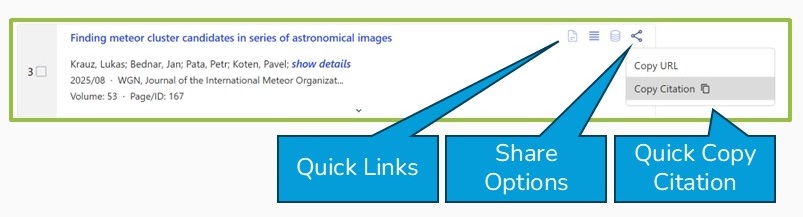
Click the icon and select Copy Citation from the menu. The formatted citation is copied to your clipboard, ready to paste into another application. The format comes from your SciX account settings, or from your selected discipline if you are not logged in.
From article view
When viewing an article, a Copy Citation button appears at the right end of the Publication information.
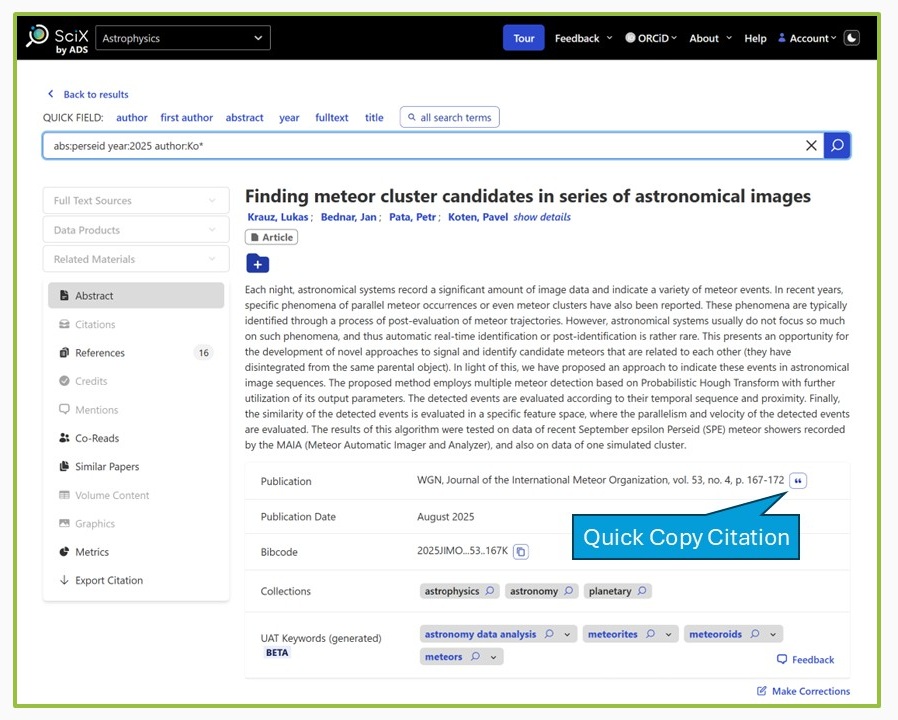
Click the button to open the Citation panel.
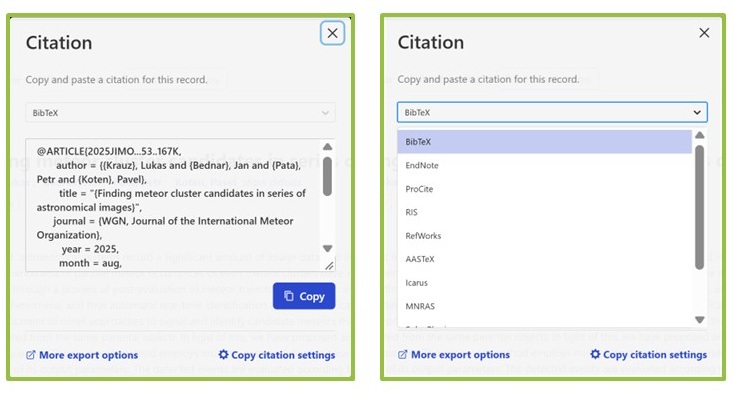
The menu at the top shows your default copy citation format, and the formatted citation appears below it. Click the blue Copy button to copy the citation to your clipboard.
To use a different format for this citation, choose one from the menu. Only some of the formats SciX supports are available here:
- More export options opens Export Results, with the full list of formats.
- Copy citation settings opens your account’s export settings, where you can change your default format. You need to be logged in to a SciX account.
Setting your default format
If you have a SciX account, you can choose the format quick copy uses.
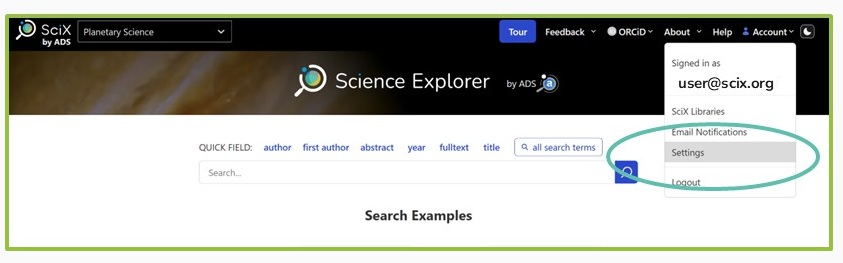
- Select Settings from the Account menu in the upper right of any SciX page.
- Select Export from the Settings menu on the left, then the Default Copy Citation Format tab under Export Settings.
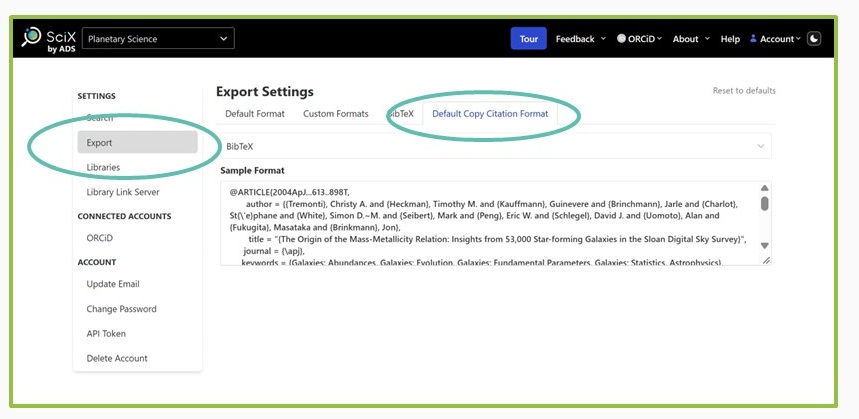
Your current default appears in the menu at the top, with a sample citation below it. Choose a new format from the menu.
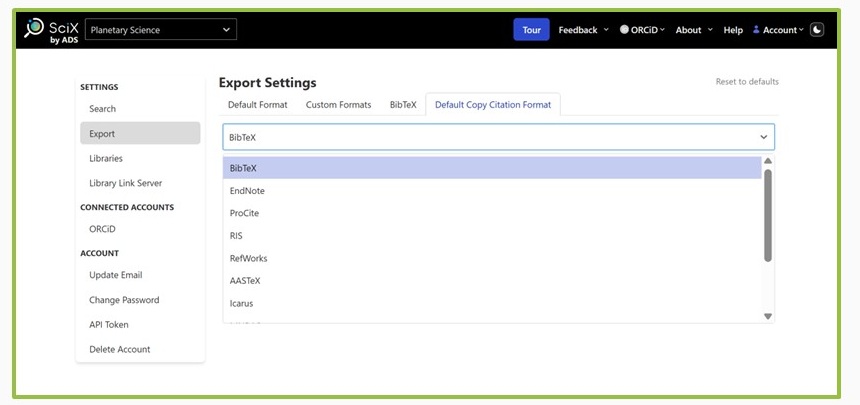
Not every format SciX supports is available for quick copy. Your copy citation format is separate from the format set on the Default Format tab, which Export Results uses. The two can be the same, but do not have to be.
Reset to defaults resets all of your export settings, including your copy citation format, to the defaults you would have without an account.
Article View
Clicking on the title of an individual article will bring you to a page showing the abstract view for the chosen article including Publication data, DOI link, keywords and arXiv identifier. On this page you will find links to lists of:
- Citations to the article
- References in the article
- Co-Reads of the article (papers that have been read by people who read this article)
- Graphics in the article
- Mentions of software and datasets in the article, and Credits for software, datasets and grants (see Mentions and Credits)
Export Citation in the left menu lets you export the article metadata in any available format (see Export Results for a full list of formats). Alternatively, the Copy Citation button at the right end of the Publication information copies a formatted citation to your clipboard for pasting into another application. The format is the one set in your SciX account, or the default for your discipline (see Copy Citation).
You can also generate the metrics for the individual article by selecting metrics from the Analyze list.
In addition you will find links to Full Text Sources (Open Access resources are indicated by an open lock) and Data Products. Also shown will be a list of Suggested Articles which are suggested based upon the information for the chosen article.
Mentions and Credits
Citations record when one paper lists another in its reference list. Software, datasets and grants are often acknowledged less formally: in a Data Availability Statement, in the text, or in the funding information a publisher supplies. SciX captures these acknowledgments as mentions and credits, so the people who build software, curate data and fund research can see the work that relied on it.
Mentions and credits
A mention is a link from a SciX record to a piece of software, a dataset or a grant that it used or acknowledged. A credit is the same link seen from the other side.
If a paper mentions a software package, the software package is credited by that paper. SciX generates both directions together, so a record’s mentions and the credits shown on the records it mentions always agree.
| Relationship | Read it as | Shown on |
|---|---|---|
| Mention | This paper used or acknowledged that software, dataset or grant | The paper’s record |
| Credit | This software, dataset or grant was used or acknowledged by that paper | The software, dataset or grant’s record |
Where to find them
On an abstract page, select Mentions in the left menu to see the software and datasets a record mentions. On a software, dataset or grant record, select Credits to see the records that credit it. For a NASA or NSF proposal, for example, Credits lists the publications that acknowledge that award.
You can also sort search results by Credit Count to bring the most credited software, datasets and grants to the top. See Sort Results.
What counts as a mention
For now SciX keeps the definition deliberately narrow, so that each mention can be trusted:
- The target has its own SciX record. SciX only links to software, datasets and grants that are indexed in SciX.
- The link uses a persistent identifier. A mention is made through a DOI or another well-defined identifier, not by matching a name in the text.
- The target is software, a dataset or a grant. Mentions of other kinds of resources are not yet tracked.
Where mentions come from
- Data Availability Statements. Many journals ask authors to list the data and software behind their results. SciX extracts the links from these sections of the full text for a growing list of journals from publishers including AAS, AGU, AMS, Elsevier, IOP and Springer.
- The Astrophysics Source Code Library (ASCL). The ASCL records which papers describe or use each software package it lists, and SciX imports those links.
- Funding metadata. Publishers (through Crossref) and data repositories (through DataCite) often record the funder and award number behind a publication. When an award number matches a NASA or NSF proposal indexed in SciX, the publication is linked to that grant.
- Repository and related works links. DataCite metadata and the related works links SciX receives from other sources, including users, add a smaller number of links between publications, software and datasets.
Work is under way to find mentions anywhere in the body of a paper, not just in its Data Availability Statement.
How mentions relate to citations and references
Mentions and credits work like citations and references: a mention is the counterpart of a reference, and a credit is the counterpart of a citation. They are kept separate because they capture different things.
- Citations and references come from the formal reference list of a paper.
- Mentions and credits come from less formal acknowledgments elsewhere in a paper or its metadata. A dataset named in a Data Availability Statement but missing from the reference list appears as a mention, not a reference.
Current limitations
Mentions and credits are a new feature, and coverage is growing rather than complete. Keep in mind:
- A missing mention does not mean there is no connection. The journal may not be covered yet, the link may sit outside the Data Availability Statement, or the software or dataset may not have a SciX record.
- Software and datasets are listed together. A record’s Mentions list can mix both. To tell them apart, check the document type of each item, or filter by document type (
doctype:softwareordoctype:dataset). - Mentions are not included in metrics. Citation counts, the h-index and other indicators are based on citations only.
- There are no search operators for mentions yet. Operators that work like
citations()andreferences()for mentions and credits are planned.
If you know of a link between a publication and software, data or a grant that SciX is missing, or have ideas for what you would like to do with mentions, write to us at help@scixplorer.org.
Bulk Actions Menu
The Bulk Actions menu, at the top right of the search results page next to Explore, acts on many results at once. Choose All to use every result, or Selected to use only the results you have checked.
- Export: export the results in BibTeX, AASTeX, EndNote or RIS, or choose Other Formats for the full list. See Export Results.
- Author Affiliations: build a report of the authors of the results and their affiliations, for example for a grant application’s collaborator list. See Author Affiliation.
To copy a single citation instead, see Copy Citation.
Export Results
On this page: How to export · Export formats · BibTeX options · Custom format · Author formats · Field specifiers
How to Export Results
SciX provides the ability to export results into various formats. To copy a single formatted citation quickly from your results list or an article view, see Copy Citation. There are two full export options:
-
Export All Results: From the results page, find the Bulk Actions dropdown menu in the top right of the page. From there, you can select a format.
-
Export Selected Results: From the results page, find the Bulk Actions dropdown menu in the top right of the page. From there, you will see selected papers checked, and you can select a format.
When the tool is opened, you will have the opportunity to review the export result and either download or copy to clipboard.
Export Formats
Use this button to export your search results in different formats. Currently available options are:
1. Tagged Formats:
- BibTeX
- BibTeX ABS
- ADS (generic tagged abstracts)
- EndNote
- ProCite
- RIS (Refman)
- RefWorks
- MEDLARS
2. LaTeX Formats:
- AASTeX
- Icarus
- MNRAS
- Solar Physics (SoPh)
3. XML Formats:
- DC (Dublin Core) XML
- REF-XML
- REFABS-XML
- VOTables
- RSS
- JATS XML
The BibTeX Format Configuration
For the two BibTeX formats there are two optional parameters maxauthor and keyformat which can be specified in user preferences.
maxauthor is maximum number of authors displayed if number of authors exceed 200. The default values for maxauthor for BibTeX and BibTeX ABS are respectively 10 and 0, where 0 means display all authors.
keyformat is mnemonic key for identifying a BibTeX entry where default is the bibcode. Key can be specified to contain the first author’s last name, or some combination of publication year, journal, or additional authors. The key generation algorithm can be specified as a custom format. For example, the default BibTeX export for 2019AAS...23338108A is:
@INPROCEEDINGS{2019AAS...23338108A,
       author = {{Accomazzi}, Alberto and {Kurtz}, Michael J. and {Henneken}, Edwin and
...
}
which can instead be defined to be one of the following:
Accomazzi:2019              -- %1H:%Y
Accomazzi:2019:AAS          -- %1H:%Y:%q
Accomazzi2019               -- %1H%Y
Accomazzi2019AAS            -- %1H%Y%q
AccomazziKurtz2019          -- %2H%Y
Note there is also %zm specifier that is used for enumeration. This format outputs a sequence of characters to the end of keyformat when it is not unique among selected records. For example having keyformat of %1H%Y%zm produces:
Accomazzi2019a
Accomazzi2019b
Kurtz2019
The SciX Custom Format
The custom format feature allows you to output SciX data in a completely user-defined format. For example, the following format
%l (%Y), %j, %V, %p.\n
produces a reference of the form:
Vinodkumar, Dharssi, I., Bally, J., Steinle, P., McJannet, D., & Walker, J. (2017), Water Resources Research, 53, 633.
where specifiers l, Y, j, V, and p are, respectively, indicators of author list, year, journal name, volume, and page numbers, and \n is a new line indicator.
The custom format also allows you, for instance, to adapt your reference format to the requirements of a specific journal, or to build other types of output like HTML formatted references. For example, the format for Icarus is:
%ZEncoding:latex\\bibitem[%2M(%Y)]{%R} %10I\ %Y.\ %T.\ %j %V, %p-%P.\n
which produces a reference of the form:
\\bibitem[Vinodkumar, et al.(2017)]{2017WRR....53..633V} Vinodkumar, Dharssi, I., Bally, J., Steinle, P., McJannet, D. and Walker, J.\\ 2017.\\ Comparison of\nsoil wetness from multiple models over Australia with observations.\\ Water\nResources Research 53, 633-646.
As can be seen from the above examples, the format is specified as a string using a syntax similar to the one used by the C-programming printf statement. The format string is composed of zero or more directives: ordinary characters (not %), which are copied unchanged to the output; and conversion specifications, for any of the fields found in the bibliographic record to be formatted (e.g. authors, title).
Furthermore, using custom format, you can format your output as a csv file. For example, the following format
%ZEncoding:csv %ZHeader:"Author,Year,Title,Journal" %G,%Y,%T,%J
would create the four specified columns, listing your results under the column heading. Note that if no column heading is specified in your custom format, the export adds the headings based on your field selections.
For author field l (please see table below for all author formats) there are optional parameters: n.m. If the number of authors in the list is larger than n, the list will be truncated and returned as “author1, author2, …, authorm, et al.”. If .m is not specified, n.1 is assumed. The format is as follows:
%[n.m]l .
Examples
The default format is the AASTeX format:
%ZEncoding:latex%ZLinelength:0\bibitem[%4m(%Y)]{%R} %5.3l\ %Y, %j, %V, %p.\n
which produces a reference of the form:
\bibitem[Rester, et al.(1989)]{1989ApJ...342L..71R} Rester, A.~C., Coldwell, R.~L. \& Dunnam, F.~E., et al.\ 1989, \\apj, 342, L71.
The format for Icarus is:
%ZEncoding:latex\\bibitem[%2M(%Y)]{%R} %10I\ %Y.\ %T.\ %j %V, %p-%P.\n
The format for MNRAS is:
%ZEncoding:latex\\bibitem[\\protect\\citename{%1h}{%Y}]{%R} %8.3g,%Y,%q, %V,%p\n
A format to create list of records with hyperlinked title is:
%ZEncoding:html<P>%a %Y, %J <A href="%u">%T</A>\n
A format to create a list of records with hyperlinked bibcode, authors, title, journal, volume, page, year for use in latex:
%ZEncoding:latex\\item \href{%u}{%R} %A: \textit{%T,} %j,%V,%p (%Y)
The same format as above but encoded for use as a rich text document (rtf) which can be edited in textedit, word, etc.
%ZHeader:"{\\rtf1\n\n" %ZFooter:"}"%zn. {\\field{\\*\\fldinst HYPERLINK "%u"}{\\fldrslt %R }} %A: \\i %T,\\i0%q,%V,%p (%Y)\\line\
Author formats
There are 18 author formats in the custom format.
Author formats for last name only
| and | Format | Specifier | Abbreviated | Example | Example Abbreviated %3.2 |
|---|---|---|---|---|---|
| text | lastname | %f | \emph{et al.} | -Henneken, Muench, Holm Nielsen, Blanco-Cuaresma, and Accomazzi -Kurtz and Accomazzi |
-Henneken, Muench \emph{et al.} -Kurtz and Accomazzi |
| text | first author only if number of authors > 2 otherwise both authors note these are separated by spaces not commas |
%H | -Henneken -Kurtz and Accomazzi |
-Henneken Muench -Kurtz and Accomazzi |
|
| symbol | first author only if number of authors > 2 otherwise both authors note these are separated by spaces not commas |
%h | -Henneken -Kurtz & Accomazzi |
-Henneken Muench -Kurtz & Accomazzi |
|
| text | lastname | %M | et al. | -Henneken, Muench, Holm Nielsen, Blanco-Cuaresma, and Accomazzi -Kurtz and Accomazzi |
-Henneken, Muench et al. -Kurtz and Accomazzi |
| symbol | lastname | %m | et al. | -Henneken, Muench, Holm Nielsen, Blanco-Cuaresma, & Accomazzi -Kurtz & Accomazzi |
-Henneken, Muench et al. -Kurtz & Accomazzi |
| none | first author only lastname+ | %n | -Henneken,+ -Kurtz,+ |
-Henneken,+ -Kurtz,+ |
Author formats for full name
| and | First Name | First Author vs The Rest | Format | Specifier | Abbreviated | Example | Example Abbreviated %3.2 |
|---|---|---|---|---|---|---|---|
| text | in full if available | same | lastname, firstname m. | %A | , and xxx colleagues | -Henneken, E. A., Muench, G., Holm Nielsen, L., Blanco-Cuaresma, S. and Accomazzi, A. -Kurtz, Michael J. and Accomazzi, Alberto |
-Henneken, E. A., Muench, G., and 4 colleagues -Kurtz, Michael J. and Accomazzi, Alberto |
| symbol | in full if available | same | lastname, firstname m. | %a | , et al. | -Henneken, E. A., Muench, G., Holm Nielsen, L., Blanco-Cuaresma, S., & Accomazzi, A. -Kurtz, Michael J. & Accomazzi, Alberto |
-Henneken, E. A., Muench, G., et al. -Kurtz, Michael J. & Accomazzi, Alberto |
| none | initials | same | lastname fm note no dots after the initials |
%E | et al note no comma before or dots after |
-Henneken EA, Muench G, Holm Nielsen L, Blanco-Cuaresma S, Accomazzi A -Kurtz MJ, Accomazzi A |
-Henneken EA, Muench G et al -Kurtz MJ, Accomazzi A |
| text | initials | same | lastname f.m. note no space after first initial |
%e | , and xxx colleagues | -Henneken, E.A., Muench, G., Holm Nielsen, L., Blanco-Cuaresma, S., and Accomazzi, A. -Kurtz, M.J. and Accomazzi, A. |
-Henneken, E.A., Muench, G., and 4 colleagues -Kurtz, M.J. and Accomazzi, A. |
| none | initials | same | lastname, f. m. | %G | , et al. | -Henneken, E. A., Muench, G., Holm Nielsen, L., Blanco-Cuaresma, S., Accomazzi, A. -Kurtz, M. J., Accomazzi, A. |
-Henneken, E. A., Muench, G., et al. -Kurtz, M. J., Accomazzi, A. |
| none | initials | same | lastname f. m. note no comma after lastname |
%g | , et al. | -Henneken E. A., Muench G., Holm Nielsen L., Blanco-Cuaresma S., Accomazzi A. -Kurtz M. J., Accomazzi A. |
-Henneken E. A., Muench G., et al. -Kurtz M. J., Accomazzi A. |
| text | initials | different | first author: lastname, f. m. other authors: f. m. lastname |
%I | , and xxx colleagues | -Henneken, E. A., G. Muench, L. Holm Nielsen, S. Blanco-Cuaresma, and A. Accomazzi -Kurtz, M. J. and A. Accomazzi |
-Henneken, E. A., G. Muench, and 4 colleagues -Kurtz, M. J. and A. Accomazzi |
| symbol | initials | different | first author: lastname, f. m. other authors: f. m. lastname |
%i | , et al. | -Henneken, E. A., G. Muench, L. Holm Nielsen, S. Blanco-Cuaresma, & A. Accomazzi -Kurtz, M. J. & A. Accomazzi |
-Henneken, E. A., G. Muench, et al. -Kurtz, M. J. & A. Accomazzi |
| text | in full if available | same | firstname m. lastname | %k | , et al. | -E. A. Henneken, G. Muench, L. Holm Nielsen, S. Blanco-Cuaresma, and A. Accomazzi -Michael Kurtz and Alberto Accomazzi |
-E. A. Henneken, G. Muench, et al. -Michael Kurtz and Alberto Accomazzi |
| text | initials | same | lastname, f. m. | %L | , and xxx colleagues | -Henneken, E. A., Muench, G., Holm Nielsen, L., Blanco-Cuaresma, S., and Accomazzi, A. -Kurtz, M. J. and Accomazzi, A. |
-Henneken, E. A., Muench, G., and 4 colleagues -Kurtz, M. J. and Accomazzi, A. |
| symbol | initials | same | lastname, f. m. | %l | , et al. | -Henneken, E. A., Muench, G., Holm Nielsen, L., Blanco-Cuaresma, S., & Accomazzi, A. -Kurtz, M. J., & Accomazzi, A. |
-Henneken, E. A., Muench, G., et al. -Kurtz and Accomazzi |
| none | initials | same | lastname, f. m. | %N | , and xxx colleagues | -Henneken, E. A., Muench, G., Holm Nielsen, L., Blanco-Cuaresma, S., Accomazzi, A. -Kurtz, M. J., Accomazzi, A. |
-Henneken, E. A., Muench, G., and 4 colleagues -Kurtz, M. J., Accomazzi, A. |
| text | initials | same | f. m. lastname | %O | , and xxx colleagues | -E. A. Henneken, G. Muench, L. Holm Nielsen, S. Blanco-Cuaresma, and A. Accomazzi - M. J. Kurtz and A. Accomazzi |
-E. A. Henneken, G. Muench, and 4 colleagues -M. J. Kurtz and A. Accomazzi |
| symbol | initials | same | f. m. lastname | %o | , et al. | -E. A. Henneken, G. Muench, L. Holm Nielsen, S. Blanco-Cuaresma, & A. Accomazzi -M. J. Kurtz & A. Accomazzi |
-E. A. Henneken, G. Muench, et al. -M. J. Kurtz & A. Accomazzi |
Note that formats %e and %f used to be known in Classic SciX as %za2 and %za3 respectively. %za1 from Classic SciX is deprecated since it is equivalent to %1H.
Other formats
| Specifier | Field | Comments |
|---|---|---|
| B | Abstract | prints out the abstract if it is available |
| C | Copyright | prints out the copyright statement if available |
| c | Citation count | outputs the number of citations to the article |
| D | Publication Date | prints out the Publication date if available |
| d | DOI | outputs the Digital Object Identifier of the article if available |
| F | Author Affiliation | prints out the Author affiliation if available |
| J | Journal | prints out the journal name |
| j | Journal | prints out the journal name if available; if an AASTeX macro for the journal is available, the macro is printed instead |
| Q | Journal | prints out the full journal information if available |
| q | Journal | prints out the journal abbreviation |
| K | Keywords | prints out the keywords if available |
| P | Last Page | prints out the last page number of the article if available |
| p | First Page | prints out the first page number of the article if available |
| pb | Publisher | prints out the publisher name for the article if available |
| pc | Page Count | prints out the number of pages of the article if available |
| pp | Page Range | prints out the page range numbers of the article if available |
| R | Bibliographic Code | prints out the bibliographic code if available |
| S | Issue | prints out the issue if available |
| T | Title | prints out the title if available |
| U | URL | prints out the URL of the abstract as a complete hyperlink with the bibcode as the anchor in the form: bibcode |
| u | URL | prints out the URL of the abstract in the form: https://scixplorer.org/#abs/bibcode/abstract |
| V | Volume | prints out the volume if available |
| W | Publication Category | prints the publication category, currently available categories are: MISC, BOOK, INBOOK, PROCEEDINGS, INPROCEEDINGS, ARTICLE, PHDTHESIS, MASTERSTHESIS, TECHREPORT |
| X | arXiv e-print number | prints the identifier corresponding to the paper’s e-print, as assigned by the arXiv |
| x | Comments | prints any of the comments available for the record |
| xe | e-print Comments | prints any e-print comments available for the record |
| Y | Year | prints out the publication year if available |
Note the “\” character is used to specify special characters, as in a printf format (i.e., “\n” is a newline, and “\t” is a tab).
Output Field Specifier
The output field specifiers are added to the beginning of the custom format as described below.
-
zn: Enumeration
This format outputs the sequence number of the record in the output
-
Z: Command format
This is a special format directive. It must be the first command specified in a format string, and there can be multiple %Z directives at the beginning of the string. While the Z tag produces no output, it allows you to specify the value of certain variables with corresponding parameters. It has the following syntax: %Zcommand:parameter. The parameter can be a number, a word, or a string, depending on the command. If it is a string, it must be enclosed in double quotes. The available commands are:
- Encoding:word Note that there are two encoding options: global and field. As the name suggests, specifying global encoding applies the encoding to the entire citation, or all output fields. Global encoding is specified using the %Z command. Please see further down for an explanation of field encoding independent of the %Z command. Available global encoding parameters are:
- unicode (default): UTF-8 encoding of all unicode characters. Note also for backward compatibility UTF-8 option for word is also supported.
- html: This encoding converts characters in URLs to hex notation, and & to
&. Outside URLs, the characters &, <, >, and “ are converted to&,<,>, and", respectively. - latex: This encoding converts all special Tex characters into their Tex escape sequences. For instance ‘\’ is converted to ‘$\backslash $’, ‘$’ is converted into ‘\$’, ‘^’ is converted into ‘\^{}’, etc.
- csv: The encoding creates csv file format including header line if not specified.
- Linelength:number This specifies the output line length (default is 0 meaning no line wraps).
- Header:“string” This specifies a header that will be output once before the data records.
- Footer:“string” This specifies a footer that will be output once after all the data records are output.
- Markup:word This specifies how to process HTML markup found in input fields (such as ). Available options are:
- keep: keep the markup (default)
- strip: remove the markup
- EOL:“string” This specifies the character to be printed at the end of a record (newline by default).
- AuthorSep:“string” This specifies the string to be used when concatenating the names of authors (“, “ by default).
- Encoding:word Note that there are two encoding options: global and field. As the name suggests, specifying global encoding applies the encoding to the entire citation, or all output fields. Global encoding is specified using the %Z command. Please see further down for an explanation of field encoding independent of the %Z command. Available global encoding parameters are:
-
Field encoding is applied to each individual field. Available field encoding characters are:
- >: html encoding. This encoding converts characters in URLs to hex notation, and & to
&. Outside URLs, the characters &, <, >, and “ are converted to&,<,>, and", respectively. - <: ascii encoding. This encoding converts accented characters to simple ASCII equivalents.
- /: url encoding. This encoding converts the characters &, ?, and + to the hex encoded values.
- \: latex encoding. This encoding converts all special Tex characters into their Tex escape sequences. For instance ‘' is converted to ‘$\backslash $’, ‘$’ is converted into ‘$’, ‘^’ is converted into ‘\^{}’, etc.
- >: html encoding. This encoding converts characters in URLs to hex notation, and & to
Author Affiliation
The Author Affiliation report allows you to create a list of all coauthors, and their affiliations, for a given author. This is especially useful to meet the requirements of some grant applications, such as for the NSF collaborator form.
To create this report for yourself:
- First search for all of your papers using your name, your ORCID ID, or a SciX library of your papers (click the “view library in search results page” button on your library).
- From the search results page, click the Bulk Actions menu in the upper right, then choose “Author Affiliation”.
- Use the “authors” and “years” drop down menus at the top of the report to choose the first N number of authors per paper and the past Y number of years (as specified by the grant agency) for the report.
- Check over and clean the report, selecting or deselecting your co-authors and their affiliations as needed.
- When satisfied, use the drop down menu at the top to select your export format and export the results.
Explore Menu
The Explore menu, at the top right of the search results page next to Bulk Actions, lets you visualize and analyze a set of results and find related papers. Choose All to use every result, or Selected to use only the results you have checked.
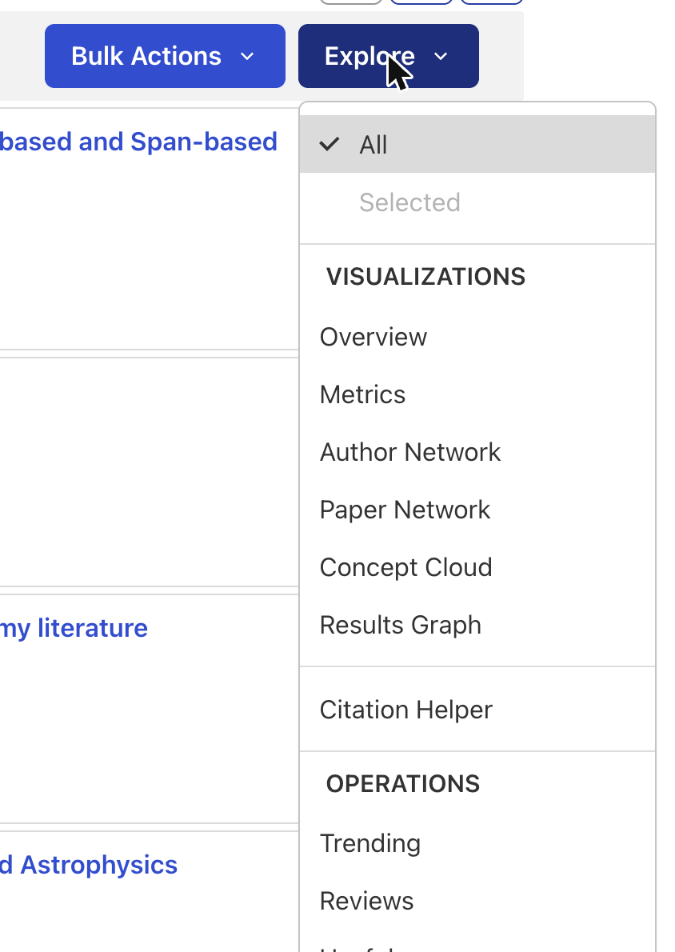
Visualizations
Each visualization opens on a Visualizations page, with a tab for each one and a Back to results link. Most have a Download CSV Data link.
- Overview: charts your results by publication Years, Citations or Reads, with refereed and non-refereed papers shown separately, and a count of each.
- Metrics: citation, usage and index metrics for the results. See Metrics.
- Author Network, Paper Network, Concept Cloud and Results Graph: see Visualize Results.
Citation Helper
Suggests papers related to your results through citations that are not in the results yet. See Citation Helper.
Operations
Operations run a new search built from your current results, using SciX’s second-order operators. For example, choosing Trending for the search exoplanets runs trending(exoplanets).
- Trending: papers most read by the people who read your results.
- Reviews: papers that cite many of your results, often review articles.
- Useful: papers that many of your results cite.
- Similar: papers whose abstracts are most similar to the abstracts of your results.
Metrics
The Citation Metrics Report
The Citation Metrics Report is an overview of citations, usage and derived indicators for a set of SciX records. This means that all quantities in this overview are solely based on data from SciX. For each paper, a “read” is counted if a SciX user runs a search in our system and then requests to either view the paper’s full bibliographic record or download the fulltext. Please note that in computing readership numbers we attempt to remove log entries generated by robots, users coming to a SciX record from an external search engine, and multiple clicks from the same user. SciX has an automated procedure that attempts to match the references in the bibliography of a record to existing records in SciX database. If a SciX record has N references associated with it, it means that the corresponding paper has at least N references in its bibliography, but potentially more if there were references that our procedure was unable to match. Keep this in mind when regarding citation and citation-derived information.
How to View Metrics:
- To access the metrics view for a list of results, on the search results page go to the Explore button –> Metrics.
- To access metrics for a single article, go to the article detail view and find the metrics in the left-hand navigation.
Citation Metrics
Note that we do not remove self-citations based on author name, because of author disambiguation problems. We apply a list-based removal of self-citations.
Normalized Citations
For a list of N papers (i=1,…N), where Nauthi is the number of authors for publication i and Ci the number of citations that this paper received, the normalized citation count for each article is Ci/Nauthi, and the ‘normalized citations’ for this list of N papers is the sum of these N numbers.
Article Usage Metrics
SciX collects information about the rate that articles have been accessed in our system. This data includes both short-term access data (recent views) and records of article access rates over the years. Article usage rates include both page views of the article detail page in SciX, and full-text downloads of the article. The value for just the full-text downloads is presented as a seperate field in the metrics page.
Recent Views
This data encompasses the past 90 days of access data for articles in SciX, including full-text downloads. This value also includes read and download information from arXiv. You can sort a list of SciX search results by this value, or view it in the results graph visualization.
Metrics for Indices
h-index
Hirsch’s h-index is the largest number H such that H publications have at least H citations. It attempts to measure the productivity and impact of a researcher in a single number. Wikipedia entry
m-index
The m-index is the h-index divided by the time (years) between the first and most recent publication.
iN-index (where N is 10 or 100)
The iN-index is the number of publications with at least N citations.
g-index
Given a set of articles ranked in decreasing order of the number of citations that they received, the g-index is the (unique) largest number such that the top g articles received (together) at least g2 citations.
tori-index
The total research impact of a scholar (tori) is calculated using the reference lists of the citing papers, where self-citations are removed. The contribution of each citing paper is then normalized by the number of remaining references in the citing papers and the number of authors in the cited paper. The tori-index is defined as the amount of work that others have devoted to his/her research, measured in research papers (see Pepe & Kurtz 2012).
riq-index
The research impact quotient (riq) equals the square root of the tori-index, divided by the time between the first and last publication, multiplied by 1000 (see Pepe & Kurtz 2012).
read10-index
Read10 is the current readership rate for all an individual’s papers published in the most recent ten years, normalized for number of authors (see Kurtz et al. 2005).
Paper Count Metrics
Normalized paper count
For a list of N papers (i=1,…N), where Nauthi is the number of authors for publication i, the normalized paper count is the sum over 1/Nauthi
Citation Helper
The Citation Helper suggests papers that are closely related to a set of results through citations, but are not part of that set. It is useful for checking a bibliography or a library for papers you may have missed.
How to use it
- Run a search, or open a library and select View as search results.
- From the Explore menu at the top right of the results, select Citation Helper. Choose Selected first if you only want to use the results you have checked.
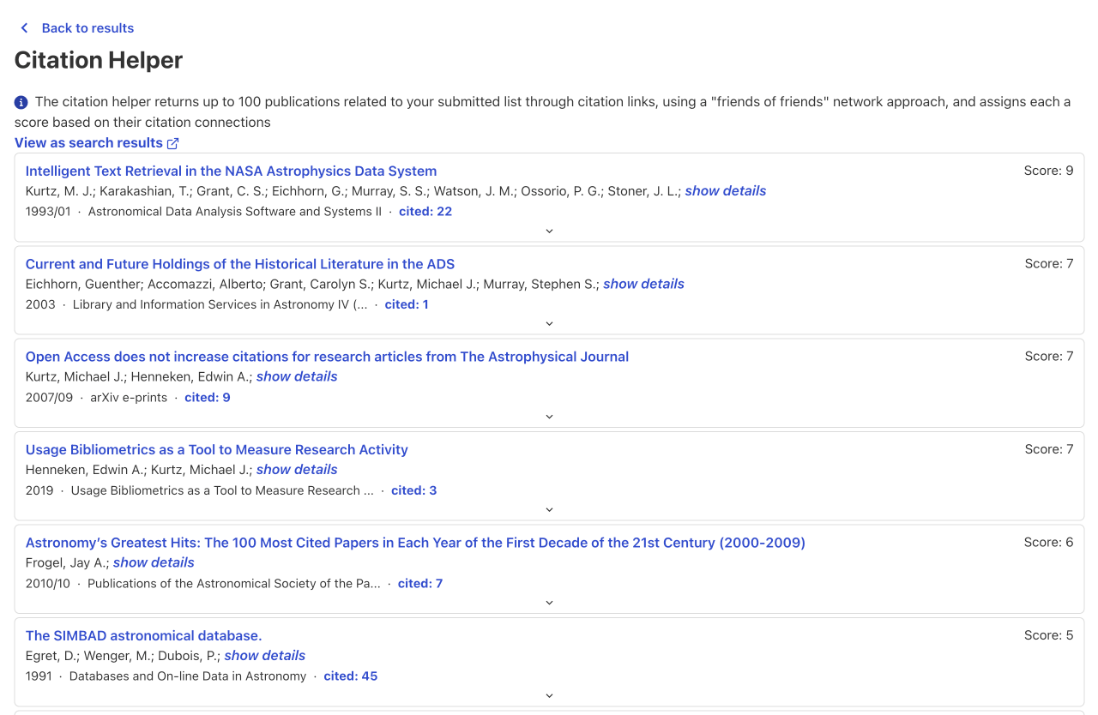
What it returns
Up to 100 papers that cite, or are cited by, papers in your results, but are not in your results themselves. It works like “friends of friends”: a paper connected to many of your results through citations gets a higher score, and the list is sorted by score.
- View as search results opens the suggestions as an ordinary results list, where you can sort, filter and export them.
- If you are logged in, you can select suggestions and click Add to library to add them to one of your libraries.
Visualize Results
Author Network
The author network detects groups of authors and connections between those groups within a set of results.
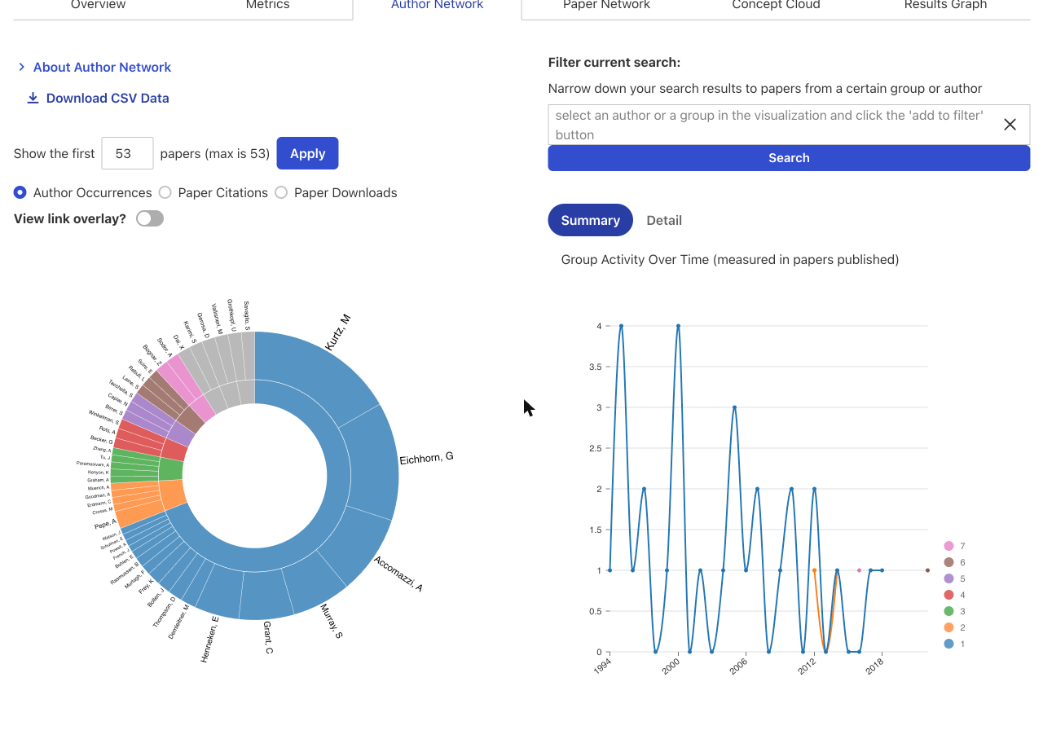 The author network for a library of papers about ADS, from the Explore menu.
How the network is made
The author network takes the top 200 most frequently appearing authors within your result set, measures the frequency of collaboration between them, and displays color-coded groups of authors organized around a center point.
How to use it
Clicking on an inside edge of a group will show you all papers from that group. Clicking on an outside edge, or an author name, will show you all papers by that particular author.
-
Quickly drill down to relevant results To quickly narrow down your search results to papers from a certain collaboration group, select the group, click the “add to filter” button, and filter your SciX search.
-
Visually explore your results set To get an at-a-glance overview of a scientist’s career, search “author:LastName,FirstName” in SciX, view the network, and quickly see an organized overview of important collaborators.
-
Answer specific questions about the results set
- To find authors who collaborate not only within their group but outside of it, check the “view link overlay” box and see which authors tend to collaborate with authors in other groups.
- To see the collaborations that have been most fruitful in terms of citations yielded, under “Size wedges based on”, click “Paper Citations”.
Paper Network
The paper network detects groups of papers based on shared references between those papers. In general, papers with many shared references will tend to have similar topics.
How the network is made
The paper network creates groups of papers that share a significant number of references, and names those groups by looking for shared, unique words in their titles.
How to use it
-
View your results grouped by sub-topic Because papers with similar references tend to be on similar subjects, you can see a rough guide to the main topics within your search results.
-
Find the most significant papers on different topics Click a group to see information about the most cited papers from that group in the right info pane.
-
Find relevant papers NOT in your result set Clicking on a group will also show you in the right pane the most commonly referenced papers from a group. Often these papers do not appear in your actual result set, and yet given their influence they might be highly relevant to your area of interest.
Results Graph
When you look at a list of SciX search results, you can sort by date published, by citation count, or by recent popularity of the article in SciX, but you cannot see all of these dimensions at once, and you cannot easily see outliers. The results graph is a customizable scatter chart that allows you to assign values to the x and y axes as well as to the radius of the circle representing a paper.
How to use it
-
Filter your search results Mouse over a circle to read information about the paper, or drag a square around a number of circles and click on the green “submit filter” button below the graph to limit your search results to the selected papers.
-
Find newly popular papers The default graph shows the recent views (the number of times a paper has been accessed in SciX in the last 90 days) as the y-axis value. In general, graphs will show a trend of decreasing reads over time as an article ages. If any paper has a higher read count than predicted by the general trend, it might be worth investigating further.
Concept Cloud
The concept cloud shows you frequently appearing and unique words in your search results.
How the concept cloud is made
The concept cloud takes words from the titles and abstracts of your search results, counts their frequencies and compares them to the same word’s frequency across the entire SciX corpus.
How to use it
- Move the slider to the left of the concept cloud towards “unique” to see those words that appeared relatively frequently in your results but rarely in the rest of SciX.
- Move the slider to the left of the concept cloud towards “frequent” to see those words that appear frequently in your results, regardless of how often they appear in the rest of SciX.
Instructions on Downloading Graphics as High-Quality PNGS in Chrome
- Install the SVG Crowbar 2 Bookmarklet
- Open the graph in SciX (currently the paper and author networks have the best support)
- Click the SVG Crowbar icon, you will see something that looks a bit messy, like this:
- Click on the two bottom buttons: #network-viz-main-chart to download the main chart, and #network-viz-time-series to download the accompanying time series graph.
Bibcodes
The SciX uses bibliographic codes (bibcodes) to identify literature in our database. Using a standard bibliographic format, as explained below, we can easily identify different articles and users can efficiently search for them. The bibcode is a 19 digit identifier which describes the journal article. The format was originally adopted by the SIMBAD and NED projects, and follows the syntax: YYYYJJJJJVVVVMPPPPA where:
- YYYY: Year of publication
- JJJJJ: A standard abbreviation for the journal (e.g. ApJ, AJ, MNRAS, Sci, PASP, etc.). A list of abbreviations is available.
- VVVV: The volume number (for a serial) or an abbreviation that specifies what type of publication it is (e.g. conf for conference proceedings, meet for Meeting proceedings, book for a book, coll for colloquium proceedings, proc for any other type of proceedings).
- M: Qualifier for publication:
- E: Electronic Abstract (usually a counter, not a page number)
- L: Letter
- P: Pink page
- Q-Z: Unduplicating character for identical codes
- PPPP: Page number. Note that for page numbers greater than 9999, the page number is continued in the m column.
- A: The first letter of the last name of the first author.
The fields are padded with periods (.) so that the code is always 19 characters long. The journal is left-justified within its 5 characters, and the volume and page are right-justified. New journal abbreviations should be unique, and follow existing naming conventions. As an example, the bibliographic code: 1992ApJ…400L…1W corresponds to the article: Astrophysical Journal Letters volume 400, page L1.
As many publishers are moving away from page numbers and using electronic identifiers more and more frequently, the page field is no longer guaranteed to be numeric. Often an identifier of more than 5 digits is truncated, and there may be letters, periods, dashes, or other characters in the page field as well. The volume field may also contain non-numeric characters.
Modern bibcodes are likely to be deprecated in the future, and users should not depend on semantic meaning represented in the bibcode.
Journal Macros
Journal Abbreviations used in the SciX BibTeX entries
Some of the LaTeX-compatible reference formats created by SciX contain macros that need to be properly expanded by TeX or LaTeX in order to produce the correct output. Since the particular formatting depends on the macro package used by the author or publisher and since these formats change with time, we suggest that users always resolve these macros by incorporating the appropriate style file in their documents. The most popular set of macros in use today in astronomy are the ones defined in the AASTeX package and supported by the journal Astronomy & Astrophysics. If you use any of the TeX-based formats generated by SciX, you should consider installing and incorporating the AASTeX macros to facilitate the preparation of your manuscript.
However, if for some reason you do not want or are not able to use the AAS macro package, you have the option of incorporating just the macros in your paper as described below. The following macros are taken from the AASTeX macro package version 6.3.1. You will need to include these macros in your LaTeX source only if you are not using the AASTeX package and need to resolve the macro definitions found in the BibTeX entries returned by SciX. You can copy the needed macros from the table below, or download the .sty file to include in your LaTeX source here.
| TeX Macro | Journal Name |
| \aas | American Astronomical Society Meeting Abstracts |
| \aj | Astronomical Journal |
| \actaa | Acta Astronomica |
| \araa | Annual Review of Astron and Astrophysis |
| \apj | Astrophysical Journal |
| \apjl | Astrophysical Journal, Letters |
| \apjs | Astrophysical Journal, Supplement |
| \ao | Applied Optics |
| \apss | Astrophysics and Space Science |
| \aap | Astronomy and Astrophysics |
| \aapr | Astronomy and Astrophysics Reviews |
| \aaps | Astronomy and Astrophysics, Supplement |
| \aplett | Astrophysics Letters |
| \apspr | Astrophysics Space Physics Research |
| \azh | Astronomicheskii Zhurnal |
| \baas | Bulletin of the AAS |
| \bain | Bulletin Astronomical Institute of the Netherlands |
| \caa | Chinese Astronomy and Astrophysics |
| \cjaa | Chinese Journal of Astronomy and Astrophysics |
| \dps | American Astronomical Society/Division for Planetary Sciences Meeting Abstracts |
| \fcp | Fundamental Cosmic Physics |
| \gca | Geochimica Cosmochimica Acta |
| \grl | Geophysics Research Letters |
| \iaucirc | IAU Cirulars |
| \icarus | Icarus |
| \jaavso | Journal of the American Association of Variable Star Observers |
| \jcap | Journal of Cosmology and Astroparticle Physics |
| \jcp | Journal of Chemical Physics |
| \jgr | Journal of Geophysics Research |
| \jqsrt | Journal of Quantitiative Spectroscopy and Radiative Transfer |
| \jrasc | Journal of the RAS of Canada |
| \maps | Meteoritics and Planetary Science |
| \memras | Memoirs of the RAS |
| \memsai | Mem. Societa Astronomica Italiana |
| \mnras | Monthly Notices of the RAS |
| \na | New Astronomy |
| \nar | New Astronomy Review |
| \nat | Nature |
| \nphysa | Nuclear Physics A |
| \pasa | Publications of the Astron. Soc. of Australia |
| \pasp | Publications of the ASP |
| \pasj | Publications of the ASJ |
| \physrep | Physics Reports |
| \physscr | Physica Scripta |
| \planss | Planetary Space Science |
| \pra | Physical Review A: General Physics |
| \prb | Physical Review B: Solid State |
| \prc | Physical Review C |
| \prd | Physical Review D |
| \pre | Physical Review E |
| \prl | Physical Review Letters |
| \procspie | Proceedings of the SPIE |
| \psj | Planetary Science Journal |
| \qjras | Quarterly Journal of the RAS |
| \rmxaa | Revista Mexicana de Astronomia y Astrofisica |
| \skytel | Sky and Telescope |
| \solphys | Solar Physics |
| \sovast | Soviet Astronomy |
| \ssr | Space Science Reviews |
| \zap | Zeitschrift fuer Astrophysik |